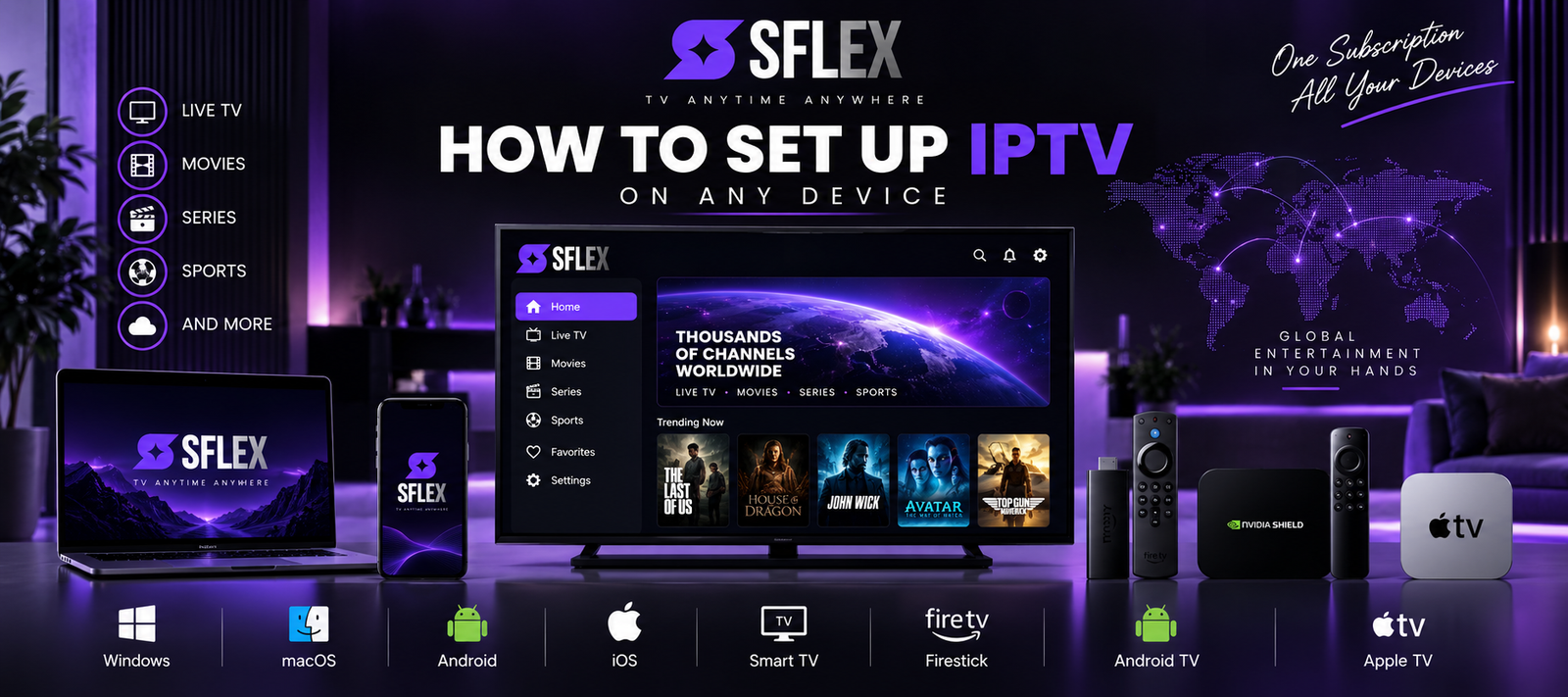
Setting up IPTV is usually easier than it sounds. In most cases, you need three things: a reliable internet connection, a compatible device, and an IPTV player that can load the subscription details provided by your service.
In this guide, you’ll learn how to set up IPTV on popular devices including Smart TVs, Amazon Fire TV devices, Android TV, Apple TV, smartphones, tablets and computers.
If you’re completely new to the technology, start with our complete beginner’s guide to IPTV. It explains what IPTV is and how internet-based television works before you begin the installation process.
What Do You Need to Set Up IPTV?
Before installing anything, make sure you have the basic requirements.
You’ll generally need a compatible streaming device, a stable internet connection, an IPTV player or application, and valid subscription details from your IPTV provider.
Depending on the service and player, your login information may be provided as a username and password with a server address, an M3U playlist, or another supported configuration method.
The exact setup varies by application, so always use the details provided by your service rather than changing URLs or configuration values yourself.
Step 1: Check Your Internet Connection
IPTV streams video over the internet, so connection quality has a direct impact on your experience.
Your required bandwidth depends on factors such as video resolution, bitrate and how many other devices are using your network.
As a general starting point:
| Video quality | Suggested connection |
|---|---|
| SD | 5+ Mbps |
| HD | 10+ Mbps |
| Full HD | 15–25+ Mbps |
| 4K | 25–50+ Mbps |
These aren’t universal requirements. Different streams can use different bitrates.
A stable connection also matters. A very fast connection with frequent interruptions can perform worse for video streaming than a slower but consistent connection.
When possible, consider using Ethernet for stationary televisions and streaming boxes. Good Wi-Fi can work perfectly well, but distance, walls and wireless interference can affect performance.
Step 2: Choose Your IPTV Device
One advantage of IPTV is that it isn’t tied to one type of television.
Depending on your provider and application, IPTV can work on devices such as:
- Smart TVs
- Amazon Fire TV and Fire TV Stick
- Android TV and Google TV
- Android TV boxes
- Apple TV
- iPhone and iPad
- Android phones and tablets
- Windows PCs
- Mac computers
- NVIDIA Shield
- Formuler devices
- MAG boxes
SmartersFlex currently lists support for many of these device categories.
For device-specific instructions, you can also go directly to the SmartersFlex IPTV installation guides.
How to Set Up IPTV on a Smart TV
Smart TVs are one of the most convenient ways to watch IPTV because you may not need an additional streaming box.
The exact process depends on your television’s operating system.
Samsung, LG, Android/Google TV and other Smart TV platforms don’t necessarily support the same applications.
1. Connect Your TV to the Internet
Open your television’s network settings and connect using Wi-Fi or Ethernet.
If Ethernet is available near the television, it can provide a more consistent connection.
2. Find a Compatible IPTV Player
Open your television’s official app store and search for an IPTV player compatible with both your television and your subscription format.
An IPTV player and an IPTV subscription aren’t necessarily the same thing.
The player is the software used to display and navigate the content. The subscription/service supplies the account and available content.
3. Install the Player
Install the application normally through your television’s app store.
4. Add Your Subscription Details
Open the application and select the appropriate login method.
Enter the credentials exactly as they were provided by your service.
5. Load Your Content
Once authenticated, the application may need some time to load available live TV, movies, series and programme-guide information.
You can then browse the available categories from your television.
How to Set Up IPTV on Amazon Fire TV or Firestick
Amazon Fire TV devices are another common option for IPTV because they can turn a television with an HDMI connection into a streaming device.
Start by connecting your Fire TV device to your television and internet connection.
If the IPTV player you intend to use is officially available through your device’s app store, install it from there and follow its normal setup process.
Once installed, open the player and enter the subscription credentials supplied by your provider.
The exact interface varies between players, but you’ll typically be asked for account information or another supported playlist format.
After authentication, allow the application to finish loading your content before navigating between categories.
For more detailed device instructions, see the SmartersFlex installation guides.
How to Set Up IPTV on Android TV or Google TV
Android TV and Google TV offer access to a wide range of streaming applications.
Step 1
Open the app store available on your Android TV or Google TV device.
Step 2
Search for a compatible IPTV player.
Step 3
Install and open the application.
Step 4
Select the login method supported by your IPTV subscription.
Step 5
Enter your credentials carefully and allow the application to load the available content.
Once complete, you should be able to navigate live television, movies, series and other features supported by your service.
The same general approach can also apply to compatible Android TV boxes and NVIDIA Shield devices.
How to Set Up IPTV on Apple TV
Apple TV can also be used with compatible IPTV services.
Open the App Store on your Apple TV and find an IPTV player that supports your subscription format.
Install the application, open it and follow its setup instructions.
You’ll generally need to enter the account details supplied by your IPTV provider.
Because applications can differ considerably, check which login formats the app supports before purchasing or configuring it.
How to Set Up IPTV on iPhone or iPad
The process on iOS and iPadOS is similar.
Open the App Store, choose a compatible IPTV player, install it and add your subscription using the credentials provided by your service.
A mobile device can also be useful for troubleshooting.
For example, if your IPTV subscription works correctly on your phone but has problems on your television, that information can help narrow down whether the issue is related to the TV, its application or its network connection.
How to Set Up IPTV on an Android Phone or Tablet
On an Android phone or tablet, open Google Play and look for a compatible IPTV player.
After installation:
- Open the application.
- Choose the appropriate login method.
- Enter the credentials provided by your IPTV service.
- Wait for the content to load.
- Select the category or stream you want to watch.
Avoid downloading applications from unknown sources when an official, trusted source is available.
How to Set Up IPTV on Windows or macOS
You don’t necessarily need a television to use IPTV.
Some IPTV players are available for Windows and macOS, while other services may support compatible web or media-player options.
The basic process remains similar: install a compatible player from a trusted source, select the appropriate account or playlist method, enter your subscription information and allow the content to load.
Never share your IPTV username, password or playlist credentials publicly.
IPTV Player vs IPTV Provider: What’s the Difference?
This distinction causes a lot of confusion for beginners.
An IPTV player is an application.
An IPTV provider supplies the service and subscription information.
Think of the player as the interface you use to access a compatible service.
Installing an IPTV player by itself doesn’t necessarily provide television channels or a subscription.
If you haven’t chosen a service yet, you can explore the SmartersFlex IPTV subscription options and check compatibility with your preferred device before getting started.
How Long Does IPTV Setup Take?
For a compatible device with an application already available, the setup itself can often be relatively quick.
The actual time depends on your device, app installation, internet connection and familiarity with the interface.
The part most likely to cause problems isn’t usually IPTV technology itself—it’s entering account information incorrectly or choosing an incompatible application.
Take your time when entering credentials.
A single incorrect character in a username, password or server address can prevent the application from connecting.
IPTV Setup Not Working? Try These Fixes
If you’ve completed the installation but IPTV isn’t loading correctly, don’t immediately reinstall everything.
Start with the basics.
Check Your Login Details
Make sure the username, password and any server or playlist information exactly match what your provider sent you.
Watch for accidental spaces when copying and pasting.
Check Your Internet
Open another streaming application or website on the same device.
If everything is slow, the problem may be your internet connection rather than the IPTV application.
Restart the Application
Completely close the IPTV player and open it again.
Restart Your Device
A simple restart can resolve temporary software or memory issues.
Restart Your Router
If multiple devices are experiencing network problems, restarting your router may help.
Try Another Compatible Device
This is a particularly useful diagnostic test.
If your subscription works on your smartphone but not your Smart TV, investigate the television, its application and its connection.
If it fails across multiple compatible devices, contact your service provider for assistance.
How to Reduce Buffering After IPTV Setup
Successful installation doesn’t necessarily mean your network is optimized for streaming.
If playback frequently pauses, first check your connection quality and Wi-Fi signal.
Try Ethernet if possible, temporarily stop large downloads, restart your network equipment and compare performance on another device.
VPNs can also affect connection performance because they route traffic through an additional server.
If you’re considering one, read our guide to free VPNs for IPTV, which explains some of the speed, data-limit and privacy trade-offs to consider.
Should You Use Wi-Fi or Ethernet for IPTV?
Neither option is automatically right for everyone.
Wi-Fi is convenient and works well when your device receives a strong, stable signal.
Ethernet removes many variables associated with wireless connections and is therefore useful for stationary devices.
If your Smart TV is close to your router and has an Ethernet port, a wired connection is worth considering.
If Ethernet isn’t practical, improving router placement or Wi-Fi coverage may help.
How to Choose the Right IPTV Device
There’s no single best IPTV device for every household.
A Smart TV may be the simplest choice if it already supports the application you need.
A separate streaming device may make more sense if your television’s app selection is limited or its software is becoming outdated.
When comparing devices, consider:
Application availability: Does the device support the player you intend to use?
Performance: Can it comfortably handle the video quality you want?
Network options: Does it offer good Wi-Fi or Ethernet?
Updates: Is the device still receiving software and security updates?
Ease of use: Is the interface comfortable for everyone in your household?
Choose based on your actual setup rather than buying a new device unnecessarily.
Frequently Asked Questions About Setting Up IPTV
Is IPTV difficult to install?
Usually not. On a compatible device, setup commonly involves installing an IPTV player and entering the subscription information supplied by your provider.
Do I need a Smart TV for IPTV?
No. IPTV can work on many internet-connected devices, including streaming sticks, TV boxes, smartphones, tablets and computers.
Can I install IPTV on Firestick?
Compatible IPTV players can be used on supported Amazon Fire TV devices. Application availability and installation methods can vary, so follow the current instructions for your specific device and player.
Can I use IPTV on an old TV?
Potentially. If the television has a suitable HDMI input, a compatible external streaming device may add the functionality required for internet-based streaming.
Do I need an IPTV box?
Not necessarily. Many Smart TVs and streaming devices can run compatible IPTV players without a dedicated IPTV box.
Why isn’t my IPTV login working?
Double-check your username, password and server or playlist details. Make sure there are no accidental spaces or typing errors. If the information is correct but authentication still fails, contact your provider.
Can IPTV work over Wi-Fi?
Yes. A stable Wi-Fi connection can work well for IPTV. Performance depends on signal strength, interference, bandwidth and network congestion.
Do I need a VPN to set up IPTV?
A VPN isn’t inherently required to use IPTV technology. Some people use VPNs for privacy or network-security purposes, but using one can also affect speed and latency.
Ready to Start Streaming?
Once your device and internet connection are ready, the next step is choosing a service that’s compatible with your setup.
You can explore SmartersFlex IPTV subscription plans for information about supported devices and available options.
Already have your subscription? Go directly to the IPTV installation guides for more device-specific setup instructions.
And if you’re still learning how internet television works, read What Is IPTV? Complete Guide for Beginners next.