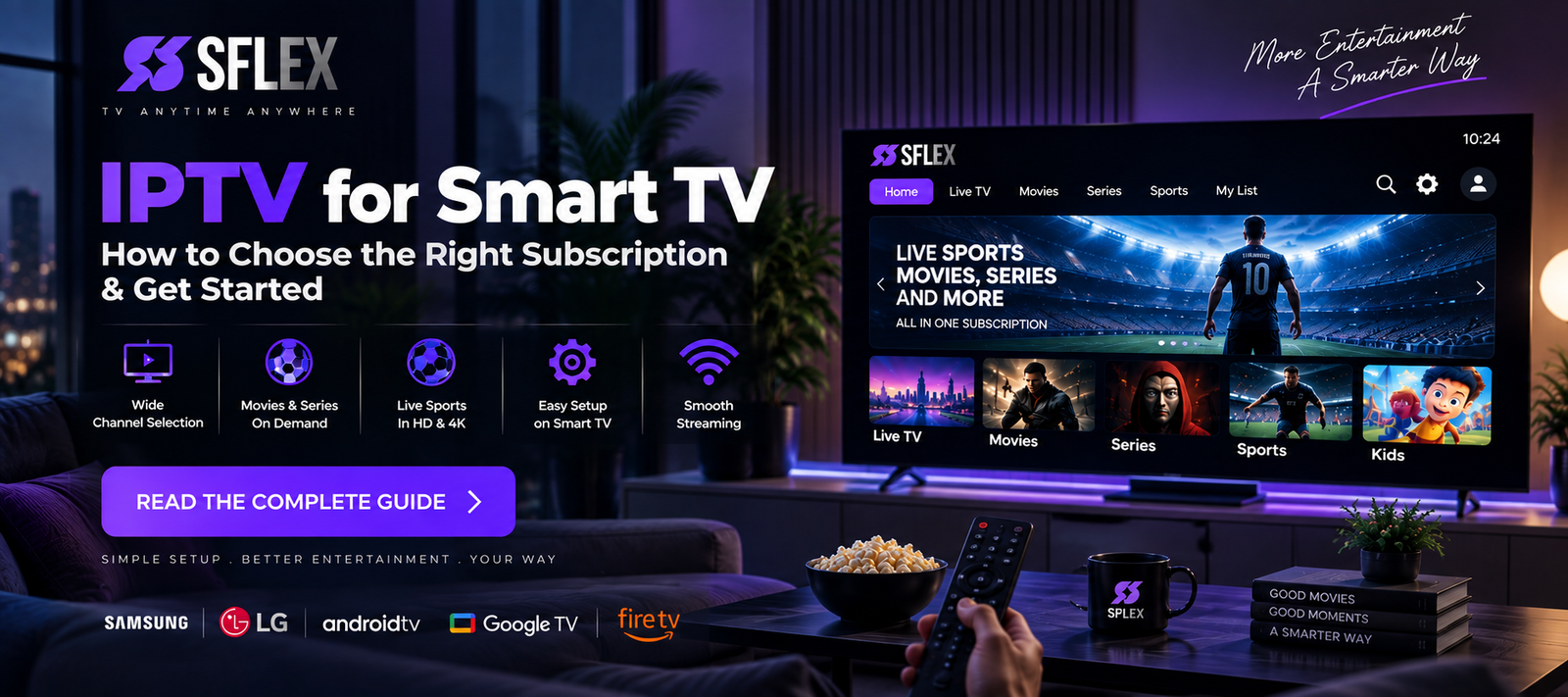
A Smart TV can be one of the simplest ways to watch IPTV at home. Instead of adding another large piece of hardware to your entertainment setup, you may be able to use a compatible IPTV player directly on your television.
But before buying an IPTV subscription for Smart TV, there are a few things worth checking.
Your television’s operating system, available IPTV players, internet connection, Wi-Fi strength and the subscription itself can all affect your experience.
And importantly, not every Smart TV works exactly the same way.
This guide explains what to check before choosing IPTV for your Smart TV, how the setup generally works, and how to test the experience before committing to a longer subscription.
If you’re completely new to IPTV, start with our complete beginner’s guide to IPTV for an introduction to how IPTV works.
Can You Use IPTV on a Smart TV?
In many cases, yes.
Smart TVs run operating systems that can support applications for streaming internet-based television. An IPTV player can provide the interface used to access a compatible IPTV subscription.
However, compatibility depends on your particular television.
Popular Smart TV platforms include:
- Samsung Smart TV
- LG Smart TV
- Android TV
- Google TV
- Fire TV
- Other manufacturer-specific Smart TV systems
The important distinction is that Smart TV is a broad category, not one operating system.
An IPTV player available for an Android TV may not necessarily appear in the Samsung or LG app store.
That’s why checking your exact TV model and operating system should be one of your first steps.
IPTV Player vs IPTV Subscription: What’s the Difference?
This causes confusion for many new users.
An IPTV player and an IPTV subscription aren’t necessarily the same thing.
The player is the application installed on your television or streaming device. It provides the interface for navigating live television, movies, series and other available content.
The subscription provides the access details and available service.
Think of the IPTV player as the interface and the IPTV subscription as the service you connect to it.
Installing an IPTV player by itself doesn’t necessarily provide television channels or a content subscription.
Understanding this difference makes Smart TV setup much easier.
1. Check Your Smart TV Platform First
Before purchasing an IPTV subscription, identify the operating system running on your television.
Samsung Smart TV
Samsung televisions typically use Samsung’s own Smart TV platform, with application availability depending on the model, region and software version.
Search the TV’s application store for compatible IPTV players before purchasing a subscription.
LG Smart TV
LG televisions similarly have their own app ecosystem.
Available IPTV players can vary according to television model, region and operating-system version.
Android TV and Google TV
Android TV and Google TV devices generally provide access to applications through Google’s TV app ecosystem.
This can provide a wider selection of compatible media and IPTV players, although availability still varies.
Other Smart TVs
Some television brands use proprietary operating systems or different app stores.
If a suitable IPTV player isn’t available directly on the television, a separate compatible streaming device may provide another option.
For detailed setup instructions, visit the SmartersFlex IPTV installation guides.
2. Choose a Compatible IPTV Player
Once you know your TV platform, check which IPTV players are available.
Don’t choose an application simply because its name contains “IPTV.”
Consider whether the player supports the login method provided with your subscription and whether it offers the features you care about.
Depending on the application, features may include:
- Live TV navigation
- Electronic Programme Guide (EPG)
- Movies and series sections
- Search
- Favorites
- Recently viewed content
- Parental controls
- Multiple playlists
- Different player options
Some IPTV players are free, while others may require a separate payment or activation.
That fee may be completely separate from your IPTV subscription.
Check before installing.
3. Make Sure Your Internet Is Suitable
Your Smart TV may be perfectly compatible with IPTV while your home network becomes the bottleneck.
Streaming video requires a stable internet connection.
As a general starting point:
| Streaming quality | Practical connection target |
|---|---|
| SD | 5+ Mbps |
| HD | 10+ Mbps |
| Full HD | 15–25+ Mbps |
| 4K | 25–50+ Mbps |
These numbers are general guidelines rather than guarantees because actual bandwidth depends on the stream’s bitrate, compression and other network activity.
More importantly, test your connection at the television.
Running a speed test beside your router doesn’t necessarily tell you how good the Wi-Fi signal is on the other side of your home.
4. Check Your Smart TV’s Wi-Fi Signal
This is particularly important for Smart TV users.
Televisions are often placed:
- Against walls
- Inside entertainment units
- Far from the router
- On another floor
- Around other electronic equipment
That can affect wireless performance.
Your broadband package might provide hundreds of megabits per second while your television receives a much weaker connection.
If IPTV works well on your smartphone near the router but struggles on the television, don’t immediately assume the IPTV subscription is responsible.
Test the network around the TV first.
5. Consider Ethernet for a Stationary Smart TV
Your television isn’t going anywhere.
That makes Ethernet worth considering when the TV and router support it and a wired connection is practical.
A wired connection can eliminate many variables associated with wireless interference and signal strength.
That doesn’t mean Ethernet automatically fixes every streaming problem.
But it provides a useful comparison.
If IPTV performs significantly better over Ethernet than Wi-Fi, you’ve discovered that your wireless network may be contributing to the issue.
6. Check the Content Before Choosing a Subscription
Once the technical side is covered, look at what you actually want to watch.
Don’t choose an IPTV subscription solely because a website advertises an enormous channel number.
Think about your real viewing habits.
Are you interested primarily in:
Live TV?
Sports?
Movies?
Series?
International entertainment?
Programming in particular languages?
A service with thousands of streams isn’t necessarily useful if you can’t easily find the entertainment you’re interested in.
Organization matters too.
Categories, search, favorites and EPG information can have a significant impact on the everyday experience.
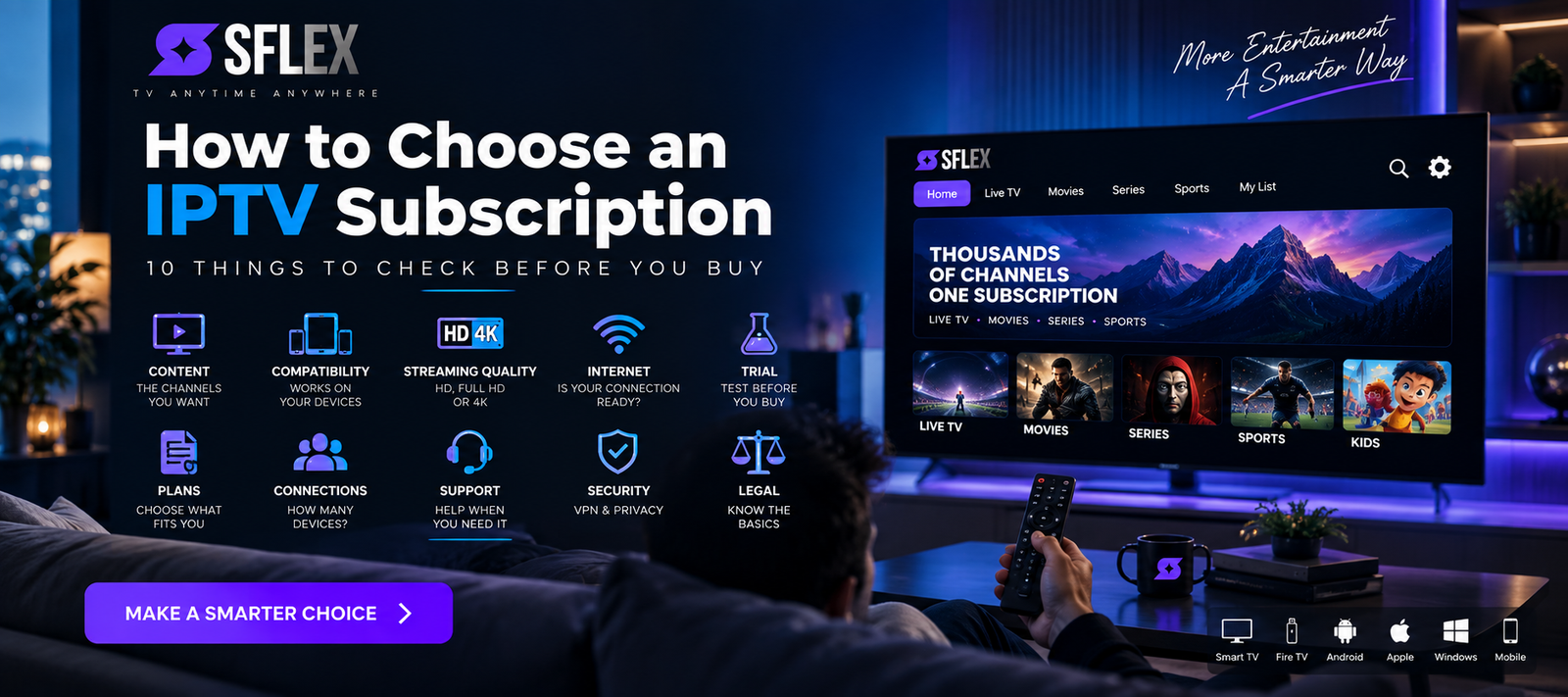
For a broader buying checklist, read our guide on How to Choose an IPTV Subscription: 10 Things to Check Before You Buy.
7. Test IPTV on the Smart TV Before a Longer Commitment
This is where a trial becomes particularly useful.
Don’t test an IPTV service exclusively on your phone and then purchase it for your television.
Test it on the actual Smart TV you’ll use.
Your trial should answer practical questions:
Does my IPTV player work correctly?
Is navigation comfortable with the TV remote?
Does the picture look good on my larger screen?
Is Wi-Fi strong enough where the TV is located?
Do streams load reasonably quickly?
Can I find the content I’m interested in?
Is playback stable during my normal viewing hours?
Those answers are much more useful than simply knowing how many channels a provider advertises.
Our IPTV Free Trial: What to Test Before Buying a Subscription guide gives you a complete testing checklist.
8. Check Picture Quality on the Television Itself
A stream that looks sharp on a six-inch smartphone can look very different on a 55-, 65- or 75-inch television.
Use your trial to evaluate picture quality on your main screen.
Look at:
Sharpness
Does HD or Full HD content look clear at your normal viewing distance?
Motion
Fast-moving sports and action scenes can reveal playback issues more clearly than static content.
Stability
Does picture quality remain consistent, or does playback repeatedly stop?
Audio
Check that audio plays correctly and remains synchronized with the picture.
Don’t evaluate streaming quality based solely on labels such as HD or 4K.
Evaluate the actual experience on your television.
9. Check EPG and Navigation
Smart TV viewing usually happens from a sofa using a remote control.
That makes navigation especially important.
During your test, check whether you can comfortably:
- Browse categories
- Open the EPG
- Search for content
- Add favorites
- Move between live TV and VOD
- Return to recently watched content where supported
An interface that feels acceptable with a mouse or touchscreen might feel very different with a television remote.
Test it the way you’ll actually use it.
10. Test Live Sports Properly
If sports are important to you, don’t evaluate the subscription by watching only movies.
Test live sports where available.
Fast-moving content can help you evaluate picture quality and playback stability.
Also check whether you can easily navigate to the sports or events you’re interested in.
If sports are one of your main reasons for considering IPTV, they should be one of the main things you evaluate before subscribing.
IPTV on Samsung Smart TV
Samsung is one of the world’s major Smart TV manufacturers, but application compatibility varies across models and regions.
The basic process is generally:
1. Check your Samsung TV’s app store.
2. Find a compatible IPTV player.
3. Install and open the player.
4. Enter the subscription details using the supported method.
5. Allow the available content to load.
6. Test playback and navigation.
Don’t manually alter subscription URLs or login information unless instructed.
Enter the details exactly as provided.
If your television doesn’t support the player you want, a compatible external streaming device may provide another route.
IPTV on LG Smart TV
The general principle is similar with LG televisions.
Check the available applications on your particular TV, install a compatible IPTV player and configure it using the details supported by your subscription.
Application availability can vary by region and model.
Again, the player and IPTV subscription may be separate products.
Installing the application doesn’t necessarily mean you’ve purchased an IPTV service.
IPTV on Android TV and Google TV
Android TV and Google TV can provide another straightforward way to use compatible IPTV players.
Search the device’s app store for an appropriate player, install it and follow the provider’s setup instructions.
One advantage of using a dedicated TV platform is that the interface is designed around remote-control navigation.
However, performance still depends on the individual television or device, application, network and stream.
What If My Smart TV Doesn’t Support the IPTV Player I Want?
You don’t necessarily need to replace your television.
A compatible external streaming device may provide access to a different application ecosystem.
Depending on your preferences, possibilities can include devices based on Fire TV, Android TV, Google TV, Apple TV or other compatible streaming platforms.
This can also be useful with older Smart TVs whose built-in software is slow or no longer receives many app updates.
Before buying additional hardware, though, check what’s already available on your television.
IPTV Keeps Buffering on Smart TV: What Should You Check?
If IPTV buffers on your Smart TV, don’t immediately change subscriptions.
Start with simple troubleshooting.
Check:
Your internet speed at the TV
Wi-Fi signal strength
Other devices consuming bandwidth
The IPTV player’s status and updates
Available TV storage
Whether several streams have the same problem
Whether another device has the same problem
Ethernet performance if available
Testing another device is particularly useful.
If the same content works correctly on another device connected to the same network, investigate the television and its setup.
If everything has the same problem, the cause may be elsewhere.
Should You Use a VPN With IPTV on Smart TV?
A VPN isn’t inherently required to use IPTV.
Some viewers choose one for privacy or network-security reasons.
If you do use a VPN, remember that routing your connection through another server can affect speed and latency.
This is especially relevant when streaming high-bitrate video.
Free VPNs can also come with limitations such as restricted bandwidth, speed caps or crowded servers.
Before choosing one, read our guide to free VPNs for IPTV and what to consider.
Smart TV IPTV Checklist Before You Buy
Before choosing a subscription, check:
- Your Smart TV platform.
- Availability of a compatible IPTV player.
- Your preferred content.
- Internet speed at the television.
- Wi-Fi signal strength.
- Ethernet availability if needed.
- Picture quality on your actual TV.
- EPG and remote-control navigation.
- Streaming stability during normal viewing hours.
- Subscription and connection terms.
And whenever a trial is available:
Test on the actual television before making a longer commitment.
Frequently Asked Questions About IPTV for Smart TV
Can I use IPTV directly on my Smart TV?
Many Smart TVs support compatible IPTV players, but availability depends on the television’s operating system, model, region and app store.
Do I need an IPTV box for a Smart TV?
Not necessarily. If your television supports a compatible IPTV player, you may be able to use the TV directly. An external streaming device can be useful when the required application isn’t available or the television’s built-in platform is limited.
Can IPTV work on Samsung Smart TV?
Compatible IPTV players are available for some Samsung Smart TVs. Availability depends on the model, software and region, so check your television’s app store.
Can IPTV work on LG Smart TV?
Some LG televisions support compatible IPTV applications. Check the app store on your particular television for current availability.
Is Android TV good for IPTV?
Android TV and Google TV support a range of compatible media applications, but the experience still depends on the specific device, IPTV player, internet connection and service.
How fast should my internet be for Smart TV IPTV?
The requirement depends on stream quality and bitrate. As a general reference, HD may require around 10 Mbps or more, while higher-quality Full HD and 4K streams can require substantially more. Connection stability is also important.
Why does IPTV buffer on my Smart TV but not my phone?
Your television may have weaker Wi-Fi reception, different hardware performance or a different application configuration. Compare connection speeds and, where possible, test Ethernet.
Do I need a VPN for IPTV on Smart TV?
No, a VPN isn’t inherently required for IPTV. Some people choose to use one for privacy or network-security reasons.
Test IPTV on Your Smart TV Before You Decide
Specifications can tell you whether your television should be compatible.
A real test tells you much more.
Use your actual Smart TV.
Use your normal Wi-Fi or Ethernet connection.
Check the content you’re interested in.
Test picture quality on the large screen.
Use the remote.
Watch during your normal viewing hours.
If the experience works well for you, you’re in a much better position to choose a subscription.
You can explore SmartersFlex IPTV subscription options when you’re ready to compare plans.