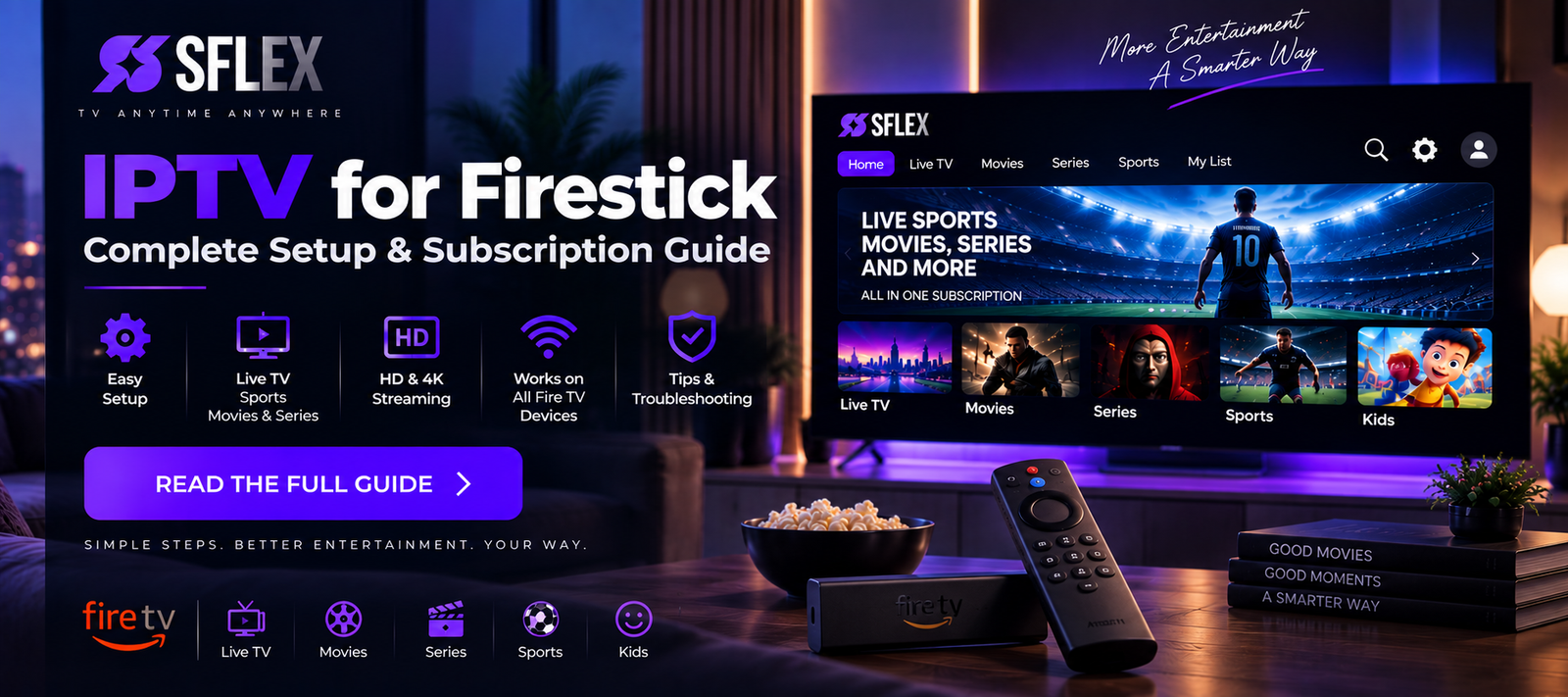
Amazon Fire TV devices have become a popular way to turn a television into a flexible streaming setup. Their compact size, remote-friendly interface and support for streaming applications make them useful for much more than traditional on-demand apps.
That also makes IPTV for Firestick an option many viewers consider when looking for live TV, sports, movies and series through one streaming device.
But installing an IPTV player is only part of the process.
Before choosing an IPTV subscription for Firestick, you should check device compatibility, your internet connection, available storage, streaming quality and whether the service actually provides the type of entertainment you want.
This guide walks through what matters—from preparing your Fire TV device to testing IPTV before choosing a longer subscription.
If you’re still comparing streaming devices, our IPTV for Smart TV guide explains how IPTV works directly on compatible televisions.
Can You Use IPTV on a Firestick?
A Fire TV device can run compatible media and IPTV player applications.
The general setup involves three components:
Your Fire TV device — the hardware connected to your television.
An IPTV player — the application used to load and navigate the service.
An IPTV subscription — the service/account details used with the compatible player.
It’s important to understand that installing an IPTV player doesn’t automatically give you an IPTV subscription.
The player and service can be separate.
Once everything is configured, the Fire TV remote can be used to browse available live TV, movies, series and other supported sections.
Which Fire TV Device Do You Have?
Before setting anything up, identify your device.
The Fire TV family includes different generations and models with different hardware capabilities.
That matters because newer or more powerful models may provide a different experience from older hardware, particularly with demanding applications or higher-resolution video.
Check your device model, available storage and software updates before troubleshooting the IPTV service itself.
You don’t necessarily need the most expensive Fire TV device for IPTV, but your hardware should be capable of handling the player and video quality you intend to use.
1. Choose a Compatible IPTV Player
The IPTV player is the interface you’ll interact with every time you watch.
So don’t treat it as an afterthought.
Depending on the player, you may have access to features such as:
- Live TV categories
- EPG / TV guide
- Movies
- Series
- Search
- Favorites
- Recently watched content
- Parental controls
- Multiple profiles or playlists
Choose a player that supports the login or playlist method provided with your subscription.
Also check whether the application itself has a separate activation fee.
An IPTV player’s price and an IPTV subscription price aren’t necessarily the same thing.
If you need device-specific setup help, use the SmartersFlex IPTV installation guides.
2. Check Your Internet Before Blaming the Firestick
Your Fire TV device can only stream as reliably as the connection available to it.
As a general starting point:
| Streaming quality | Practical connection target |
|---|---|
| SD | 5+ Mbps |
| HD | 10+ Mbps |
| Full HD | 15–25+ Mbps |
| 4K | 25–50+ Mbps |
These are general guidelines, not guaranteed requirements. Actual bandwidth usage varies with bitrate, encoding and the individual stream.
And raw download speed isn’t everything.
A stable connection is extremely important for live streaming.
Your internet package might advertise hundreds of megabits per second while the Firestick itself receives considerably less because of Wi-Fi conditions.
3. Test Wi-Fi Where Your Firestick Actually Is
This matters more than many people realize.
A Fire TV Stick is normally connected directly behind or beside the television.
That location isn’t always ideal for wireless reception.
Walls, distance from the router, nearby electronics and the television itself can all affect your wireless environment.
So don’t rely entirely on a speed test performed on your phone while standing beside the router.
Test the connection near the television.
If your Firestick struggles while other devices close to the router perform perfectly, Wi-Fi coverage may be contributing to the problem.
4. Consider Ethernet When Appropriate
Wi-Fi is convenient, but some Fire TV setups can use Ethernet through compatible hardware.
A wired connection can be useful if your television is stationary and your Wi-Fi signal isn’t reliable.
This doesn’t mean Ethernet magically fixes every IPTV issue.
It simply removes several wireless variables.
If the same IPTV stream repeatedly buffers over Wi-Fi but performs much better over Ethernet, that’s useful evidence that the home network deserves attention.
5. Check Firestick Storage
Fire TV devices have limited internal storage.
Over time, applications and cached data can consume that space.
If your Firestick is overloaded with apps you no longer use, cleaning up unnecessary applications may help keep the device easier to manage.
Check:
- Available storage
- Unused applications
- Pending system updates
- IPTV player updates
Restarting the Firestick periodically can also resolve some temporary application or system problems.
A subscription can’t compensate for a device that’s struggling because of local software or storage issues.
6. Look Beyond the Number of Channels
Suppose one IPTV subscription advertises an enormous number of channels.
That sounds impressive.
But how many of those channels will you actually watch?
Before subscribing, think about your real priorities:
- Live television
- Live sports
- Movies
- Series
- International entertainment
- Particular languages or regions
- Kids’ programming
Then evaluate whether the service fits those needs.
Relevant content is more useful than the biggest possible number.
Organization matters as well. On a Firestick, you’ll be navigating with a remote, so sensible categories and search features can make a major difference.
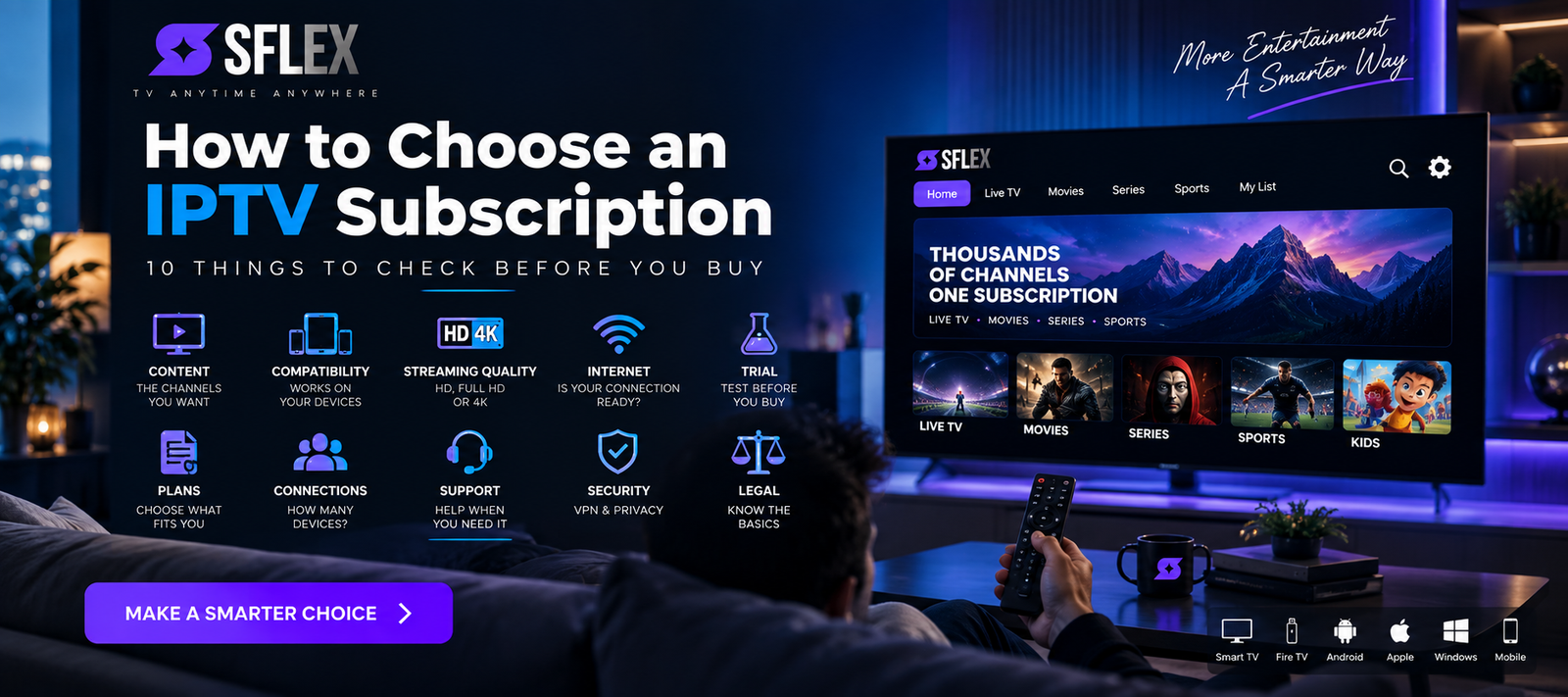
For a complete buying checklist, read our guide on how to choose an IPTV subscription before making your decision.
7. Test IPTV on Your Firestick Before Buying Longer Term
This is one of the most important recommendations in this guide.
If a trial is available, use it on the Firestick you’ll actually watch.
Don’t test only on your phone.
Your Firestick has different hardware, Wi-Fi reception and software.
During the trial, check:
Channel loading — How quickly do different streams begin?
Stability — Can you watch continuously without frequent interruptions?
Picture quality — Does it look good on your television?
Navigation — Can you comfortably use the interface with the Fire TV remote?
Content — Can you find what you’re actually interested in?
Normal viewing hours — How does it perform when you usually watch?
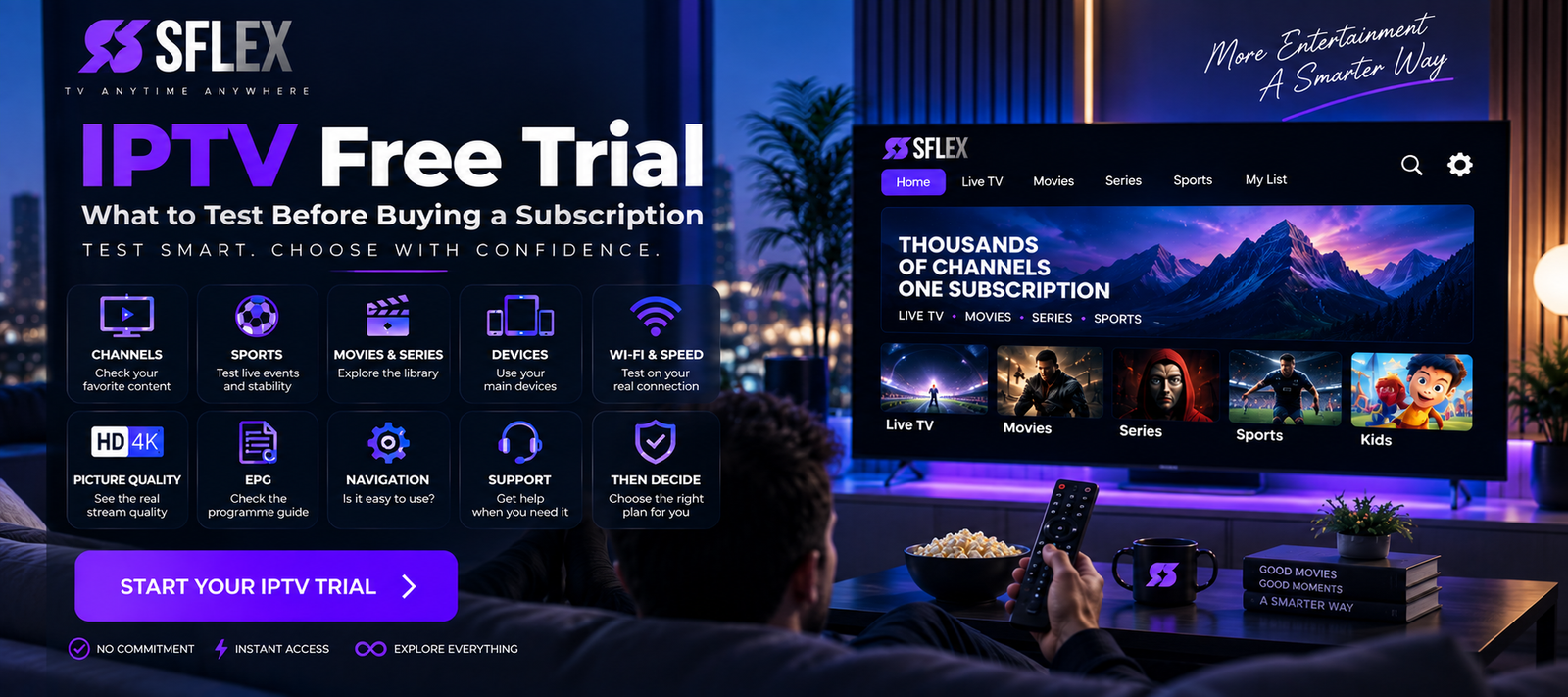
We’ve created a full IPTV free trial checklist explaining exactly what to test before buying a subscription.
8. Test Several Different Streams
Don’t open one channel and use it to judge the entire service.
Test different categories.
For example:
Live TV → Sports → Movie → Series → Another live channel
This gives you a better understanding of the overall experience.
It’s also useful for troubleshooting.
If one channel has difficulty while everything else plays normally, that’s different from every stream buffering.
Knowing the difference can save a lot of unnecessary troubleshooting.
9. Test Live Sports Properly
If live sports are one of the main reasons you’re considering an IPTV subscription, test them during your trial.
Sports are particularly useful for evaluating streaming because fast-moving scenes can make picture and playback issues easier to notice.
Check:
- Picture clarity
- Motion
- Loading time
- Playback stability
- Audio synchronization
- EPG/event information where available
And test during an actual viewing period when possible.
Opening an inactive sports category tells you much less than testing the type of live event you’re interested in.
Our next guide will go deeper into IPTV for live sports and what sports viewers should check before subscribing.
10. Explore Movies and Series
Don’t forget video-on-demand if it’s part of the subscription you’re evaluating.
Use the Fire TV remote to browse the movie and series sections.
Ask yourself:
Is search easy to use?
Are categories organized clearly?
Can I quickly find something to watch?
Does playback start correctly?
Is the picture quality suitable?
The experience should feel comfortable from the sofa, not just technically functional.
11. Check the EPG
An Electronic Programme Guide can be particularly useful for live television.
Instead of opening channels randomly, an EPG can show what’s currently playing and, where available, upcoming programming.
During your Firestick IPTV test, check whether programme information loads properly in your chosen player.
Also check how easy it is to navigate the guide using the Fire TV remote.
A feature can exist but still be inconvenient if the interface isn’t comfortable.
12. Use Favorites
If your IPTV player supports favorites, test them.
Large channel libraries can become cumbersome.
Instead of scrolling through hundreds or thousands of entries every time, adding the channels you actually watch to favorites can make the everyday experience much faster.
This is another reason why usability matters alongside content quantity.
13. Test IPTV During Your Normal Viewing Hours
If you usually watch television between 7 PM and 11 PM, that’s when you should test.
Don’t evaluate the entire experience at 9 AM when your household network is practically empty.
Your internet may be busier in the evening.
Other household members could be:
- Streaming video
- Gaming
- Downloading files
- Making video calls
- Using cloud backups
Test under realistic conditions.
The purpose of a trial is to determine how the service works for you, not under artificially perfect conditions.
14. Compare the Firestick With Another Device
If you’re experiencing problems, try another compatible device.
For example, test the same service on a smartphone connected to the same Wi-Fi.
Firestick buffers, phone doesn’t
Investigate the Firestick, its player and the Wi-Fi conditions around your television.
Both devices buffer
The issue may be related to your network or something elsewhere in the streaming chain.
This simple comparison is much more useful than randomly changing settings.
IPTV Buffering on Firestick: What Should You Check?
Buffering doesn’t automatically mean you need a different IPTV subscription.
Start with the basics:
- Restart the Firestick.
- Restart your router if appropriate.
- Check Wi-Fi strength near the television.
- Test several different streams.
- Close unnecessary applications.
- Check available Firestick storage.
- Update your IPTV player.
- Test another device.
- Compare Wi-Fi with Ethernet where available.
- Check whether other devices are heavily using your network.
Change one thing at a time.
Otherwise, you may fix the problem without knowing what actually caused it.
IPTV Freezes but My Internet Is Fast — Why?
Because headline internet speed is only one variable.
Imagine your broadband connection is rated at 500 Mbps.
That doesn’t mean your Firestick receives 500 Mbps continuously.
Wi-Fi interference, distance, congestion, router performance and device conditions can all affect the connection.
Streaming stability matters alongside maximum speed.
Likewise, if only one stream has a problem while dozens of others work normally, increasing your internet package probably won’t address that particular issue.
Should You Use a VPN With IPTV on Firestick?
A VPN isn’t inherently required for IPTV.
Some users choose VPNs for privacy or network-security reasons.
Fire TV devices can support compatible VPN applications, but remember that a VPN changes the path your internet traffic takes.
Depending on the VPN server, provider and network conditions, this can affect speed and latency.
If you experience poor performance while using a VPN, compare playback with and without it where appropriate.
Free VPNs can have additional limitations such as data caps, reduced speeds or crowded servers.
Read our guide explaining what to consider before using a free VPN for IPTV.
Firestick vs Smart TV for IPTV
If your television already supports a compatible IPTV player, you may wonder whether you need a Firestick at all.
There isn’t one universal answer.
Smart TV app
Using the television directly means fewer devices and potentially a simpler setup.
Firestick
A Fire TV device gives you a separate streaming platform and application ecosystem. It can also be useful if your television is older or doesn’t support the player you want.
The better option depends on your TV, preferred player and setup.
If you’re deciding between them, compare this guide with our IPTV for Smart TV setup and subscription guide.
What Should You Check Before Buying IPTV for Firestick?
Before choosing a subscription, confirm:
Compatibility — Can you use an appropriate player on your Fire TV setup?
Content — Does the service provide the entertainment you’re looking for?
Internet — Is your connection stable enough?
Wi-Fi — Does the Firestick receive a strong signal?
Picture quality — Does it look good on your television?
Stability — Does playback remain consistent?
Navigation — Is the player comfortable with the Fire TV remote?
Subscription terms — Do you understand the duration and connection limits?
Trial — Can you evaluate the service before choosing a longer plan?
Don’t choose solely because a provider advertises the largest channel number or longest subscription discount.
Frequently Asked Questions About IPTV for Firestick
Can you use IPTV on Firestick?
Fire TV devices can run compatible IPTV player applications. You’ll also need appropriate subscription/access details supported by the player.
Is an IPTV player the same as an IPTV subscription?
No. An IPTV player is generally the application/interface used to access a compatible service. The subscription provides the service or account access.
What internet speed do I need for IPTV on Firestick?
Requirements depend on stream quality and bitrate. As a general reference, HD may require around 10 Mbps or more, while Full HD and 4K can require substantially more. A stable connection is also important.
Why does IPTV buffer on my Firestick?
Possible causes include weak Wi-Fi, network congestion, limited device resources, application issues or problems affecting a particular stream. Test several streams and another device before drawing conclusions.
Is Ethernet better than Wi-Fi for Firestick IPTV?
Ethernet can provide a more consistent connection where supported and properly configured. Strong Wi-Fi can also work well.
Can I watch IPTV in 4K on Firestick?
That depends on the capabilities of your particular Fire TV model, television, application, internet connection and whether the individual content is available at that resolution.
Do I need a VPN for IPTV on Firestick?
No, a VPN isn’t inherently required. Some people choose one for privacy or security reasons.
Should I test IPTV before buying a subscription?
When a trial is available, testing on your actual Firestick can help you evaluate device compatibility, picture quality, content, navigation and connection stability before choosing a longer subscription.
Test IPTV on Your Firestick Before You Decide
A Firestick can provide a convenient IPTV setup, but the best way to know whether a particular service suits you is to test it in the environment where you’ll actually watch.
Use your real Firestick.
Use your normal internet connection.
Test the channels and entertainment you care about.
Try live sports if they’re important to you.
Watch for more than a few minutes.
And test during your normal viewing hours.
If you’re still comparing services, read our guide to choosing an IPTV subscription and use our IPTV free trial checklist before making a longer commitment.
When you’re ready, explore the available SmartersFlex IPTV subscription options.